Tags for Software Engineering Activities in Eclipse
TagSEA Getting Started
This page will guide you through the features of TagSEA to get you started.
Tagging Code
TagSEA allows you to tag locations directly in your source code as you type, within any valid Java comment. The following examples show you how you can tag your source code:
Examples:
//@tag chris
//@tag revisit api : Refactor this code.
//@tag bugfix -author="Del" -date="enCA:18/01/07" : the assist gets updated as you type.
//@tag tagsea.bug.3.fix -author="Del Myers" -date="enCA:18/01/07" : performance fix.
The format is as follows:
@tag tagname <... more-tag-names> <... meta-data> <: comment text >
Find out more about tagging code.
Tagging Resources
TagSEA allows you to tag any resource in your workspace. They are stored in an xml file in your workspace, rather than directly in the code.
Options for tagging resources:
- right-click on any resource in your workbench.
- right-click in any text editor, or on a text-editor's vertical ruler to display its context menu (provided that the editor is editing a file in the workspace). In the context menu, select Tags>Add Waypoint... to open up the waypoint edit dialog:
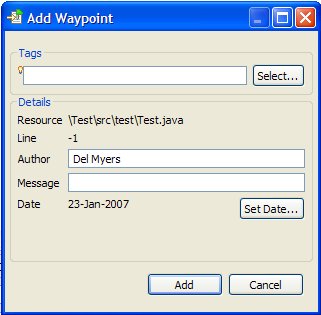
Find out more about tagging resources.
Tasks and Breakpoints
TagSEA can automatically create waypoints based on your Eclipse tasks (e.g. TODO) and the breakpoints stored in your workspace.
TagSEA View
The TagSEA view is made up of two parts: the Tags pane and the Waypoints pane.
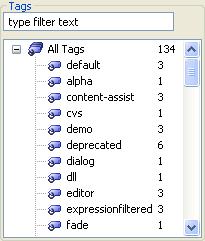
The Tags pane shows either a hierarchical or flat layout of all of the tags in your workspace or project. The number to the right of each tag represents the number of occurances of that tag.
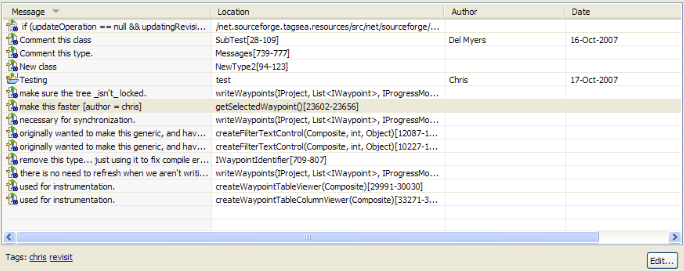
The Waypoint pane provides properties about each tagged location. This includes: the comment, the location, author, and date. If this information is not present, the fields are left blank. It's possible to edit some of these properties directly in the view by right clicking on a waypoint and choosing "Properties".
At the bottom of this pane, a list of all of the tags on a given waypoint are listed. These can be edited by selecting the "Edit" button on the right.
Find out more about the TagSEA view.
CloudSee
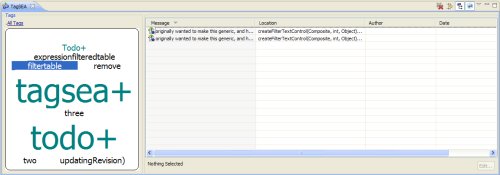
CloudSee provides a way to visualize tags using a tag cloud. To access CloudSee, select the CloudSee Icon on the right side of the TagSEA View.
If you have any hierarchical tags (e.g. bug.fix), these will be displayed with a plus icon (+). By double clicking on these tags, you can navigate the hierarchy. A breadcrumb trail at the top of the tag cloud shows your location within the hierarchy.
Create Presentations of Your Code (TagSEA Tours)
TagSEA Tours turns your Eclipse workbench into a presentation platform. Files, sourcecode, and waypoints can be organized and intermixed with special effects and animations so that you can present your work in a slideshow directly from your workspace. Tours requires Eclipse 3.3.
For more info, see the Tours page.
Tags for Software Engineering Activities in Eclipse (TagSEA)
is a research collaboration between
the University of Victoria's
Computer Human Interaction & Software Engineering Lab
and the IBM Watson Research Centre.